

Graphviz DOT Language Guide: Using stzDotCode
Graphviz has been integrated into the Softanza ExerCode framework to provide a powerful, code-driven approach to creating professional diagrams. Rather than building visualizations through UI interactions, Graphviz allows developers to define diagrams as structured text, making them version-controllable, reproducible, and programmatically generated.
by Mansour Ayouni · in the repository since 2025-10-16 · tutorial · area Diagramming & graphs
Introduction: Why Graphviz in Softanza?
Basic Usage Pattern
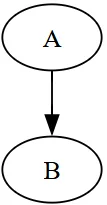
Dot = new stzDotCode()
Dot.SetCode('digraph MyGraph { A -> B; }')
Dot.ExecuteAndView()
illustration
Core Concepts
Graph Types
DOT supports two fundamental structures:
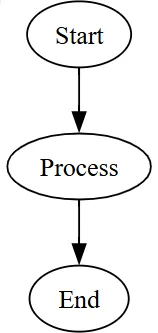
Directed Graphs - For workflows, hierarchies, and dependencies:
Dot = new stzDotCode()

Dot.SetCode('
digraph MyWorkflow {
    Start -> Process -> End
}
')

Dot.RunAndView()
illustration
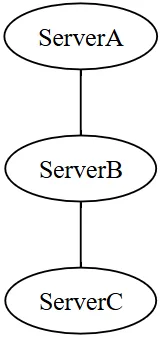
Undirected Graphs - For networks, relationships, and physical connections:
Dot = new stzDotCode()

Dot.SetCode('
graph MyNetwork {
    ServerA -- ServerB
    ServerB -- ServerC
}
')

Dot.Run()
Dot.View()
illustration
The Three Levels of Attributes
Graphviz styling works hierarchically:
Dot = new stzDotCode()

Dot.SetCode('
digraph G {
    # Graph-level: affects entire diagram
    graph [rankdir=LR, bgcolor=white]

    # Node-level: affects all nodes
    node [shape=box, style=filled, fillcolor=lightblue]

    # Edge-level: affects all edges
    edge [color=gray, penwidth=2]

    # Individual node: overrides defaults
    Important [fillcolor=orange]

    # Individual edge: overrides defaults
    Important -> Critical [color=darkred, penwidth=4]
}
')

Dot.ExecuteXT()
illustration
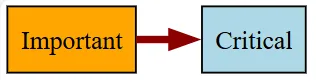 The more specific level always wins. An individual node's
 fillcolor overrides the default node attribute.
Node Shapes: Building Your Visual Language
Nodes are the "nouns" of your diagram. Shape choice communicates meaning.
Common Shapes and Their Purposes
| Shape | Haro Code | Best For |
|---|---|---|
| Box | shape=box |
Processes, tasks, events |
| Circle | shape=circle |
States, simple items |
| Ellipse | shape=ellipse |
Start/end points, default |
| Diamond | shape=diamond |
Decisions, conditions |
| Record | shape=record |
Data structures, tables |
| Cylinder | shape=cylinder |
Databases, storage |
| Component | shape=component |
Hardware, modules |
| Trapezium | shape=trapezium |
Input/output |
| Parallelogram | shape=parallelogram |
Data input |
Shape Example
Dot = new stzDotCode()

Dot.SetCode('
digraph Shapes {
    graph [rankdir=LR]
    node [style=filled, fontname="Arial"]

    box_node [shape=box, fillcolor=lightblue, label="Process"]
    circle_node [shape=circle, fillcolor=lightgreen, label="State"]
    decision [shape=diamond, fillcolor=yellow, label="Decision?"]

    box_node -> circle_node -> decision
}
')

Dot.SetOutputFile("shapes.svg")
Dot.ExecuteAndView()
illustration
 A horizontal diagram showing three different node shapes connected by arrows.
Edges: Connecting Your Ideas
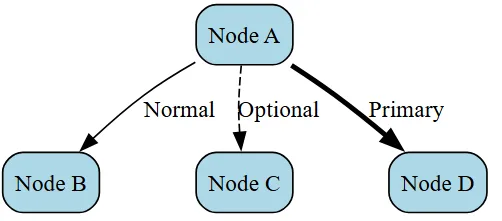
Edges represent relationships. Their styling communicates the nature of that relationship.
Edge Styling Options
Dot = new stzDotCode()

Dot.SetCode('
digraph EdgeStyles {
    graph [rankdir=TB, nodesep=0.8]
    node [shape=box, style="rounded,filled", fillcolor=lightblue]

    A [label="Node A"]
    B [label="Node B"]
    C [label="Node C"]
    D [label="Node D"]

    # Normal solid edge
    A -> B [label="Normal"]

    # Dashed: optional or weak connection
    A -> C [label="Optional", style=dashed]

    # Bold: strong or primary path
    A -> D [label="Primary", style=bold, penwidth=3]
}
')

Dot.RunAndView()
illustration
Arrow Types
haro
Dot = new stzDotcode()

Dot.SetCode('
digraph ArrowTypes {
    graph [rankdir=LR, nodesep=0.8]
    node [shape=box, style="rounded,filled", fillcolor=lightblue]
    edge [fontname="Arial", fontsize=10]

    A [label="Node A"]
    B [label="Normal"]
    C [label="Dot"]
    D [label="Diamond"]
    E [label="Both"]
    F [label="Back"]
    G [label="None"]

    A -> B [arrowhead=normal, label="normal"]
    A -> C [arrowhead=dot, label="dot"]
    A -> D [arrowhead=diamond, label="diamond"]
    A -> E [dir=both, label="both"]
    A -> F [dir=back, label="back"]
    A -> G [dir=none, label="none"]
}
')
Dot.SetOutputFile("arrow_types.svg")
Dot.ExecuteAndView()
illustration
 Seven edges from Node A to different target nodes, each demonstrating a different arrow style.
Layout Control: Directing Flow
The layout determines how your diagram reads.
Rank Direction (rankdir)
haro
graph [rankdir=TB]  # Top to Bottom (default) - natural reading
graph [rankdir=LR]  # Left to Right - timelines, processes
graph [rankdir=BT]  # Bottom to Top - dependencies building upward
graph [rankdir=RL]  # Right to Left - uncommon, reverse flow
illustration
Choosing rankdir:
- TB: Hierarchies, org charts, processes (most intuitive)
- LR: Timelines, sequences, system architectures (left-to-right reading)
- BT: Dependency trees (showing what feeds into what)
- RL: Alternative direction (rarely used)
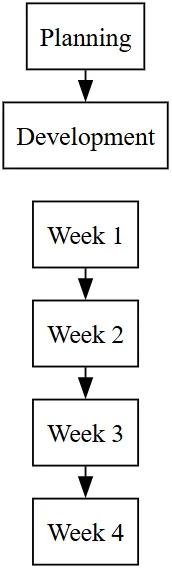
Alignment: Same Rank
Force nodes onto the same horizontal or vertical level:
haro
dot = new stzDotCode()

Dot.SetCode('
digraph Timeline {
    graph [rankdir=LR]
    node [shape=box]

    # Time markers on same rank
    {rank=same; t1, t2, t3, t4}
    t1 [label="Week 1"]
    t2 [label="Week 2"]
    t3 [label="Week 3"]
    t4 [label="Week 4"]

    # Tasks aligned with times
    {rank=same; t1, task1}
    task1 [label="Planning"]

    {rank=same; t2, task2}
    task2 [label="Development"]

    t1 -> t2 -> t3 -> t4
    task1 -> task2
}
')

Dot.RunAndView()
illustration
Clusters: Grouping Related Nodes
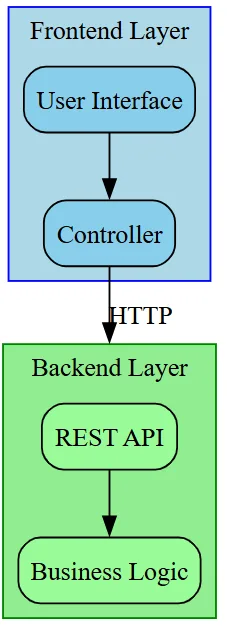
Clusters create visual groupings with boundaries. They're essential for showing organizational structure, system layers, or process phases.
Creating Clusters
haro
Dot.SetCode('
digraph Architecture {
    graph [rankdir=TB, compound=true]
    node [shape=box, style="rounded,filled"]

    # Frontend cluster
    subgraph cluster_frontend {
        label="Frontend Layer"
        style=filled
        fillcolor=lightblue
        color=blue

        ui [label="User Interface", fillcolor=skyblue]
        controller [label="Controller", fillcolor=skyblue]
        ui -> controller
    }

    # Backend cluster
    subgraph cluster_backend {
        label="Backend Layer"
        style=filled
        fillcolor=lightgreen
        color=green

        api [label="REST API", fillcolor=palegreen]
        logic [label="Business Logic", fillcolor=palegreen]
        api -> logic
    }

    # Cross-cluster connections
    controller -> api [lhead=cluster_backend, label="HTTP"]
}
')
illustration
 Key points:
- Cluster names must start with
cluster_to get a visual box - Use
lheadandltailfor clean cross-cluster connections - Set
compound=trueat graph level to enable these features
Color and Style: Visual Communication
Color choices convey meaning and hierarchy.
Built-in Color Schemes
Rather than random colors, use schemes for consistency:
haro
node [colorscheme=blues9]
A [fillcolor=1]   # Lightest blue
B [fillcolor=5]   # Medium blue
C [fillcolor=9]   # Darkest blue, fontcolor=white for readability
illustration
Popular schemes:
blues9, reds9, greens9- Monochromatic, 9 shadespaired12- Complementary pairsset19- Distinct colors for categories
Style Combinations
haro
node [style="filled"]              # Just fill color
node [style="rounded,filled"]      # Rounded corners + fill
node [style="dashed"]              # Dashed outline
node [style="bold,filled"]         # Thicker outline + fill
illustration
Color Psychology
Use colors consistently:
- Green - Success, approval, "go"
- Red - Error, stop, critical
- Yellow/Orange - Warning, caution
- Blue - Information, process, neutral
- Gray - Inactive, optional, deprecated
Advanced: Record Shapes
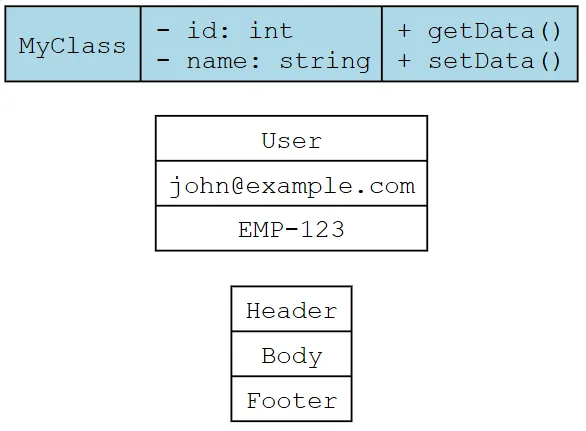
Record shapes create multi-part nodes useful for data structures, class diagrams, or complex information.
haro
Dot.SetCode('
digraph Records {
    graph [rankdir=LR]
    node [fontname="Courier"]

    # Simple record with vertical sections
    simple [shape=record, label="Header|Body|Footer"]

    # Record with named ports
    struct [shape=record,
            label="<name>User|<email>john@example.com|<id>EMP-123"]

    # Complex record
    class [shape=record, style=filled, fillcolor=lightblue,
           label="{<title>MyClass|<attrs>- id: int\l- name: string\l|<methods>+ getData()\l+ setData()\l}"]
}
')
illustration
 Port notation:
|separates vertical sections<name>creates a named connection point{}subdivides sections horizontally
Practical Patterns
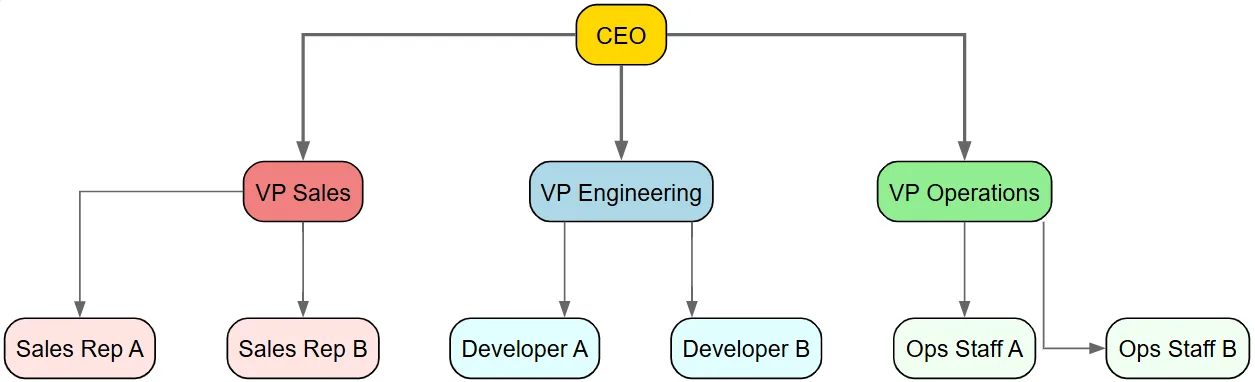
Organization Chart
haro
Do = new stzDotCode()

Dot.SetCode('
digraph Hierarchy {
    graph [rankdir=TB, splines=ortho, nodesep=0.6, ranksep=0.8]
    node [shape=box, style="rounded,filled", fontname="Arial"]
    edge [color=gray40, arrowsize=0.8]

    # Force same rank for specific nodes
    {rank=same; CEO}
    {rank=same; VP_Sales, VP_Eng, VP_Ops}
    {rank=same; Sales_A, Sales_B, Dev_A, Dev_B, Ops_A, Ops_B}

    CEO [fillcolor=gold, fontcolor=black, label="CEO"]

    VP_Sales [fillcolor=lightcoral, label="VP Sales"]
    VP_Eng [fillcolor=lightblue, label="VP Engineering"]
    VP_Ops [fillcolor=lightgreen, label="VP Operations"]

    Sales_A [fillcolor=mistyrose, label="Sales Rep A"]
    Sales_B [fillcolor=mistyrose, label="Sales Rep B"]
    Dev_A [fillcolor=lightcyan, label="Developer A"]
    Dev_B [fillcolor=lightcyan, label="Developer B"]
    Ops_A [fillcolor=honeydew, label="Ops Staff A"]
    Ops_B [fillcolor=honeydew, label="Ops Staff B"]

    CEO -> {VP_Sales, VP_Eng, VP_Ops} [penwidth=2]
    VP_Sales -> {Sales_A, Sales_B}
    VP_Eng -> {Dev_A, Dev_B}
    VP_Ops -> {Ops_A, Ops_B}
}

Dot.RunAndView()
illustration
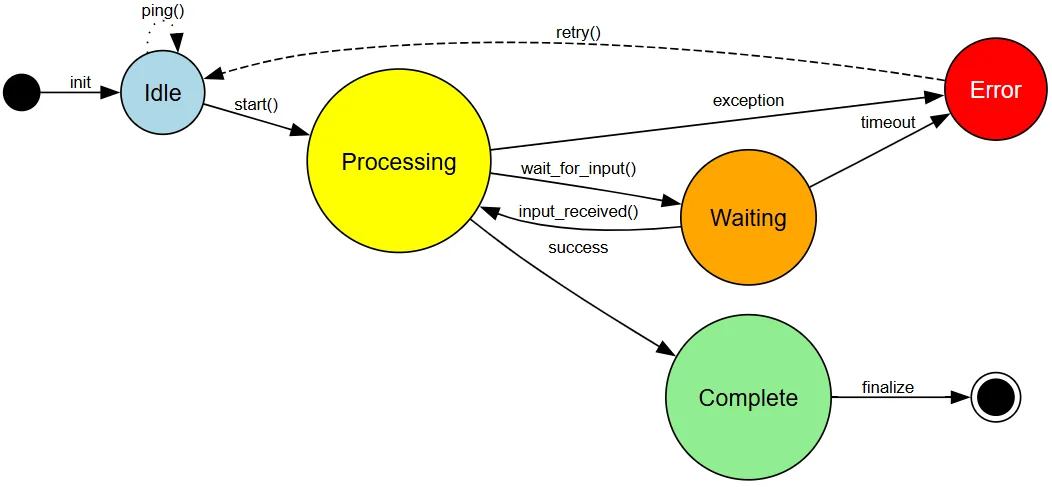
State Machine
haro
Do = new stzDotCode()

Dot.SetCode('
digraph StateMachine {
    graph [rankdir=LR, bgcolor=white, fontname="Arial"]
    node [fontname="Arial", style=filled]
    edge [fontname="Arial", fontsize=10]

    # Special states
    start [shape=circle, fillcolor=black, width=0.3, label=""]
    end [shape=doublecircle, fillcolor=black, width=0.3, label=""]

    # Regular states
    idle [shape=circle, fillcolor=lightblue, label="Idle"]
    processing [shape=circle, fillcolor=yellow, label="Processing"]
    waiting [shape=circle, fillcolor=orange, label="Waiting"]
    complete [shape=circle, fillcolor=lightgreen, label="Complete"]
    error [shape=circle, fillcolor=red, fontcolor=white, label="Error"]

    # Transitions
    start -> idle [label="init"]
    idle -> processing [label="start()"]
    processing -> waiting [label="wait_for_input()"]
    processing -> complete [label="success"]
    processing -> error [label="exception"]
    waiting -> processing [label="input_received()"]
    waiting -> error [label="timeout"]
    error -> idle [label="retry()", style=dashed]
    complete -> end [label="finalize"]

    # Self-loop
    idle -> idle [label="ping()", style=dotted]
}
')

Dot.SetOutputFile("state_machine.svg")
Dot.ExecuteAndView()
illustration
Process Workflow
haro
Dot.SetCode('
digraph Workflow {
    graph [rankdir=LR, splines=ortho]
    node [shape=box, style="rounded,filled"]

    start [shape=circle, fillcolor=green, label="Start"]
    input [fillcolor=lightblue, label="Input Data"]
    process [fillcolor=lightyellow, label="Process"]
    decision [shape=diamond, fillcolor=gold, label="Valid?"]
    output [fillcolor=lightgreen, label="Output"]
    error [fillcolor=lightcoral, label="Error"]
    end [shape=circle, fillcolor=red, label="End"]

    start -> input -> process -> decision
    decision -> output [label="Yes"]
    decision -> error [label="No"]
    output -> end
    error -> end
}
')
Dot.SetOutputFile("workflow.svg")
Dot.ExecuteAndView()
illustration

Best Practices
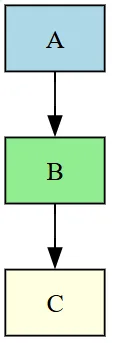
1. Start Simple, Build Complexity
Begin with basic nodes and edges, then add styling and structure.
haro
# Version 1: Structure
Dot.SetCode('
digraph G {
    A -> B -> C
}
')

# Version 2: Styling
Dot.SetCode('
digraph G {
    node [shape=box, style=filled]
    A [fillcolor=lightblue]
    B [fillcolor=lightgreen]
    C [fillcolor=lightyellow]
    A -> B -> C
}
')
illustration
2. Use Consistent Styling
Group similar elements with the same appearance:
haro
Dot.SetCode('
digraph G {
    # All processes: blue boxes
    node [shape=box, fillcolor=lightblue]
    process1; process2; process3

    # All decisions: gold diamonds
    node [shape=diamond, fillcolor=gold]
    decision1; decision2

    # All endpoints: circles
    node [shape=circle, fillcolor=green]
    start; end
}
')
illustration

3. Label Everything
Clear labels are essential for understanding:
haro
# Bad: unclear
A [label="X"]

# Good: descriptive
user_input [label="User\nEnters Data"]
illustration
4. Use rankdir Intentionally
Match the reading direction to your audience's expectations:
haro
# Org chart: top-down
graph [rankdir=TB]

# Timeline: left-to-right
graph [rankdir=LR]

# Build process: bottom-up
graph [rankdir=BT]
illustration
5. Limit Density
Too many connections or nodes creates visual chaos:
- Use clusters to group related items
- Use separate diagrams for different aspects
- Consider breaking complex flows into stages
Troubleshooting
Diagram Not Rendering
Issue: stzDotCode throws an error or file isn't created.
Check:
- Graphviz is installed (
dot.exeexists at specified path) - DOT code has matching braces
{ } - No syntax errors (semicolons at line ends)
- Output directory exists and is writable
Nodes Overlapping
Issue: Nodes are cramped together.
Solutions:
haro
graph [rankdir=TB, nodesep=0.8, ranksep=1.0]  # More spacing
graph [splines=ortho]  # Right-angle edges, less overlap
graph [overlap=false]  # Force layout algorithm to avoid overlaps
illustration
Edges Too Complicated
Issue: Lines cross and tangle.
Solutions:
- Use
splines=orthofor clean right-angle lines - Use
rankdir=LRinstead of TB for certain hierarchies - Break into multiple clusters
- Consider separate diagrams for different aspects
Output File Not Where Expected
Remember the directory structure:
haro
Dot.SetOutputDir("output")          # Sets base directory
Dot.SetOutputFile("diagram.svg")    # Creates output/diagram.svg
Dot.SetOutputFile("subdir/diagram.svg")  # Creates output/subdir/diagram.svg
illustration
Summary
Graphviz's text-based approach to diagram creation enables:
✓ Version Control - Diagrams in Git alongside code ✓ Automation - Generate diagrams from data programmatically ✓ Reproducibility - Same input always produces same output ✓ Scale - Create hundreds of diagrams without UI interaction ✓ Integration - Embed diagram generation into applications
stzDotCode is your programmatic bridge to this power. Master the DOT language fundamentals, and you unlock the ability to create professional, maintainable diagram infrastructure within SoftAnza.
Cite
Mansour Ayouni. "Graphviz DOT Language Guide: Using stzDotCode". Softanza narrations, 2025. https://mayouni.github.io/stzsite/en/narrations/stzdotcode-graphiz-dot-language-guide.html
Not run: its code touches files, the network, the clock or chance. The article is published as written; its blocks are illustrations. The code of the articles is Haro code. Where an article was written before the language took its present name, the name was changed and nothing else. Genre, area and series read from the file's name, the year from its first commit: derived, until the article carries its own header. The file on GitHub(opens in a new tab)